
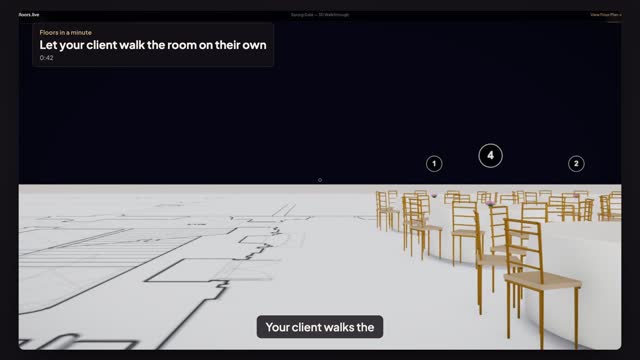
Questions this guide answers
How do I send my client a 3D walkthrough?
Press Share, switch access to Anyone with the link and press Copy walkthrough link. Send it by email or message. Your client opens the room in first person in their browser, with no account and nothing to install, and walks it at their own pace.
How does the client move around?
They click once in the view, then walk with the arrow keys or W, A, S and D and look around with the mouse. Shift walks faster. On a phone or tablet two on-screen sticks do the same. The link shows the room, not your guest list: names stay private.
What is the difference between the walkthrough link and the share link?
The share link opens the plan and its 3D preview to look at. The walkthrough link drops your client straight into the room at eye height, so they experience it as a guest would. Save a view from a seat first and both links open there.
Transcript
Your client walks the room before the event.
The client can't visit this week. Send them the room.
In the 3D preview, press View from a seat and click a chair on the aisle.
Press Save this view. Every link you send now opens right here.
Press Share, switch to Anyone with the link, and press Copy walkthrough link.
Your client opens it with no account, in that seat, and walks with W, A, S and D.
They step into the aisle and walk the room at their own pace.
The room they will walk into, before the doors open.
Next: walk them in from their own seat.