
Questions this guide answers
How do I save an image of the 3D view?
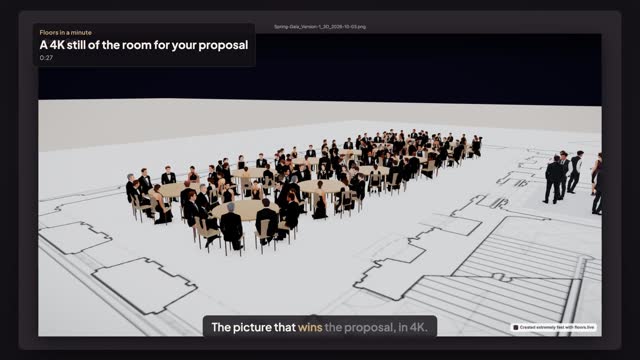
Open Preview in 3D, frame the view you want and press Snapshot. Choose HD or 4K, then Save to download a PNG, Copy to paste it into an email or document, or Share to send it on. The image is rendered at the size you chose, not taken from your screen.
Does the snapshot carry my branding?
Yes. The image carries the event name, venue and date across the top. With your logo set in Branding, your logo sits in the corner instead of the Floors.live mark, so the image is ready for a proposal or a client email without editing.
What if my computer can't make a 4K image?
Some graphics cards can't render 4K in the browser. Floors.live then saves the image in HD and says so, rather than failing. HD is 1920 by 1080, enough for a slide or an email; try 4K again on a stronger computer for print.
Transcript
The picture that wins the proposal, in 4K.
The gala is dressed and seated. The proposal needs a hero image.
In Preview in 3D, fly in low and frame the dressed tables.
Press Snapshot and choose 4K.
Press Save. The event name, venue and date are on the image.
A 4K image for the proposal, straight from the plan.
Next: let the client walk the room.