
Questions this guide answers
How do I turn a photo of my own furniture into a 3D object?
Open any category in the element library and press Photo to 3D Element, or use the banner in the Catalog. Drop in the photo, pick the type, name it, type its real width, depth and height, and choose the material. Keep Realistic and press Create. A few minutes later it appears in My Objects, ready to place.
How do I place several copies of my custom 3D object?
Open Catalog, then My Objects, and click your object. Press R to turn it ninety degrees before you place it, or L to turn it the other way, then click the plan where it goes. The turn is kept for the next copy, and holding Shift as you click keeps placing copies, one after another.
Will a custom object made from a photo show at its real size?
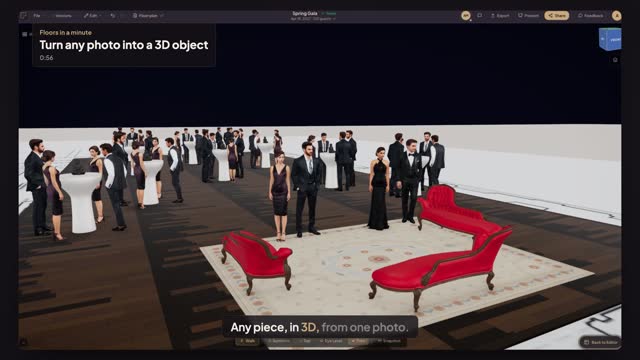
Yes. The width, depth and height you type in the dialog are the object's real size, so it sits on your floor plan at true scale, just like the tables. Preview in 3D then shows it standing on the floor next to your tables, highboys and guests, exactly as your client will see it.
Can I put my own 3D centerpiece on every highboy?
Yes. Create it from a photo with the type Centerpiece and a tabletop size. Then click one highboy or table, open Centerpieces and pick it under Your designs. Press Apply to all tables and every table in the plan gets it, sitting on the tabletop when you open Preview in 3D.
Transcript
Any piece, in 3D, from one photo.
A cocktail hour in the East Room. The client owns red chaise lounges.
Press Photo to 3D Element, drop in the chaise, pick Sofa and type its real size.
Keep Realistic, one dollar of credit, and press Create. Then the Buddha: a Centerpiece, twelve inches tall.
Minutes later, both are ready. Click the chaise, press R to turn it, and click to place.
Click a highboy, open Centerpieces, pick the Buddha, and press Apply to all tables.
Open Preview in 3D. Your own pieces, at true size, in the middle of the party.
Any photo, a real 3D object, at its true size.
Next: share it with your client.