
Questions this guide answers
How can my client ask for changes on the plan?
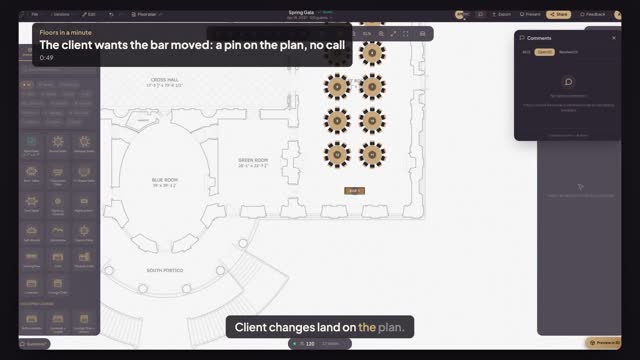
Press Share, add the client's email and choose Comment. The client signs in, opens the plan, presses Comment and clicks the spot the request is about. It shows up for you as a pin with the text, in Comments, tied to that place on the plan.
Can a client comment without an account?
No. Commenting needs a signed-in account, so every request has a name on it; a free account is enough. A client who only needs to look can use the view link or the 3D walkthrough link instead, with no account at all.
How do I know a request has been dealt with?
Press Resolve on the comment once the change is made. Resolved requests leave the Open list and stay under Resolved, so you can show the client what was asked and when it was done. Open at zero means nothing is waiting on you.
Transcript
Client changes land on the plan.
The gala is laid out. Now the client wants a say.
Press Share, type the client's email, choose Comment, and send. She can comment, not edit.
Maya signs in and opens the plan. She presses Comment and clicks the bar.
She types what she wants and posts it.
Back on your screen, open Comments. Her request is there, with her name.
Press Jump to comment: it sits on the bar. Drag the bar and press Resolve.
Asked on the plan, done on the plan, and nothing lost.
Next: a walkthrough link for the client.