
Questions this guide answers
What camera do I need for a 360° venue photo?
Any 360° camera works, such as an Insta360 or a GoPro Max. The photo must be a full 360° equirectangular image, not a regular phone panorama. If you don't own a camera, ask the venue whether it already has a 360° photo or a virtual tour. Shoot at eye level with every light switched on.
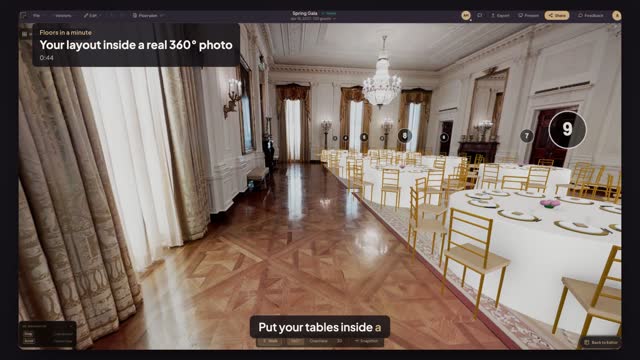
How do I put my layout inside a 360° photo of the room?
Open the 3D preview, press Upload 360° Photo and pick your shot. Then zoom in on your floor plan, draw the room along its inner walls, and drag the cross to the spot where the camera stood. Press Apply and Floors.live lines the photo up with your plan, showing your tables inside the real room.
Can I use a Matterport tour instead of shooting my own 360° photo?
Yes. In the 3D viewer, open Import 3D Tour and paste the share link of a Matterport, Visiting Media, visitme.co, Kuula or Roundme tour. Move through the tour to the best vantage point and confirm the capture. It is then used like an uploaded 360° photo, and you mark the room on your plan as usual.
Transcript
Put your tables inside a real photo of the room.
All it takes is one 360 photo of the space.
Any 360 camera works, like an Insta360 or GoPro Max. Maybe the one you take snowboarding.
No camera? Ask the venue for theirs. Shoot at eye level with every light on.
Press Upload 360° Photo and pick your shot.
Zoom in, draw the room along its inner walls, then drag the cross to where you stood.
Press Apply. Floors lines the photo up with your plan.
Your gala, standing in the real East Room.
Next: share it with your client.