
Questions this guide answers
How do I add projection screens and monitors?
Open AV in the element library. Screen places a front projection screen; LCD Monitor places a TV, from 32 to 100 inches. Press R while placing to turn it, then click where it stands. Set Mounting to Stand, Desk, Hung, or DSM for a downstage monitor lying on the stage facing the speaker.
Can I show my slides on the screens in 3D?
Yes. Select a screen or monitor and under Screen Content choose Custom Image, then upload your slide or graphic. Test Pattern and Gradient are there too. Open Preview in 3D and the image shows on the screen, so you can judge size and readability before you rent anything.
How do I check sight lines for the back rows?
Open Preview in 3D and move the camera to a back-row seat at eye height, or use the Eye Level view. Look past the heads and columns at the stage and screens. If the slides are too small or blocked, add a delay screen halfway down the room and check again.
Transcript
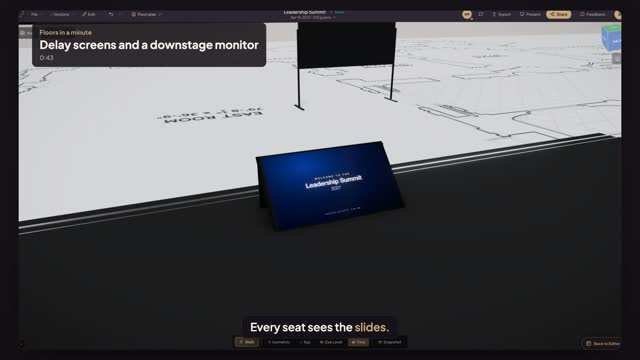
Every seat sees the slides.
The back rows are far from the stage. Give them a screen.
Open AV, pick Screen, and click by the left wall, halfway down the room.
A ten-foot projection screen. Under Screen Content, choose Custom Image and upload the slide.
Now an LCD Monitor. Press R twice, click the stage's front edge, and set Mounting to DSM.
Custom Image, same slide: the speaker's downstage monitor.
Open Preview in 3D and sit in the back row. Check every sight line.
Slides for the back row, a downstage monitor for the speaker, all in sight.
Next: fill the room with real people.