
Questions this guide answers
How do I size an LED wall in Floors.live?
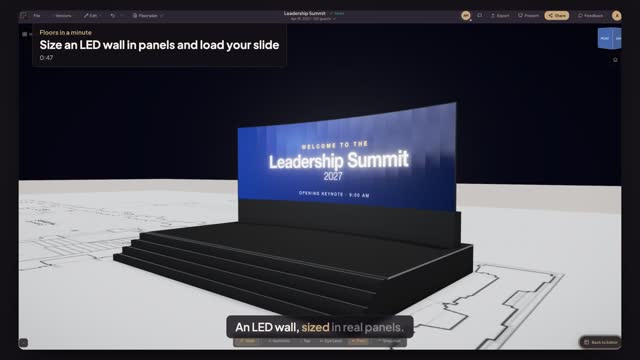
Open AV in the element library, pick LED Wall and click where it stands. Set the width and height in panels; the wall resizes on the plan and shows its total width and height in feet. Press Curve for a gentle arc; it keeps your panel count.
What resolution should I send to an LED wall?
Pick the pixel pitch of the panels you rent, such as 2.6 or 3.9. Floors.live shows the composition size in pixels and the aspect ratio for that wall, for example 3654 by 1154 pixels for nineteen by six panels at 2.6. Send your content at exactly that size.
Can I show my slides or a test pattern on the LED wall?
Yes. Under Screen Content, choose Test Pattern to check the wall, Gradient for a colour wash, or Custom Image and upload a slide or graphic. It appears on the wall in Preview in 3D, so your client sees their own content on stage before the event. A logo overlay is available too.
Transcript
An LED wall, sized in real panels.
The summit stage is built. Now the screen behind the speaker.
Open AV, pick LED Wall, and click the back edge of the stage.
Make it nineteen panels wide and six high, then press Curve: the full stage, gently curved.
Pick Pixel Pitch 2.6. It shows the exact resolution to send your content at.
Press Test Pattern to check the wall, then Custom Image, and upload the opening slide.
Open Preview in 3D and look from the audience.
Thirty-one feet of curved LED, your slide on it, before a single panel ships.
Next: screens and monitors for every seat.