
Questions this guide answers
How do I build a stage in Floors.live?
Open Venue in the element library, pick Stage and click where it goes. Under Templates, apply a layout such as Wide Stage, type the width and depth you need, pressing Set after each, then set the deck height. The stage is sized from real decks, so its footprint on the plan and in 3D matches what the crew builds.
How do I add stairs or skirting to a stage?
Select the stage and click the plus sign on any open edge. Choose Stairs, set the shape and width, or pick Full width to run one stair along the whole edge, and press Add. The same menu adds platforms, a catwalk, a rounded nose, skirting, railing or an LED edge strip.
Can I save my own stage layout?
Yes. The Templates panel has Presets and Saved. Build the stage once with its decks, heights, stairs and skirting, save it under a name, and apply it to the next event with one click. Presets cover a main stage, a wide stage, a runway, a thrust, L and T shapes and an arena cross.
Transcript
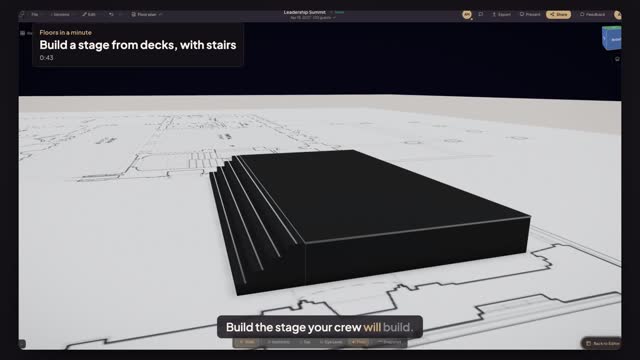
Build the stage your crew will build.
A summit in the East Room. The plan is already to scale.
Open Venue, pick Stage, and click the middle of the top wall.
Apply Wide Stage. Type thirty-two feet in Width and sixteen in Depth, pressing Set after each.
Type thirty-two inches for the height and press Set.
Click the plus on the front edge, choose Stairs, set Alignment to Full width, and press Add.
Open Preview in 3D: decks, skirting and stairs at true height.
Your stage, exactly as the crew will build it.
Next: put an LED wall behind it.