
Questions this guide answers
How do I get a pixel map for my LED wall?
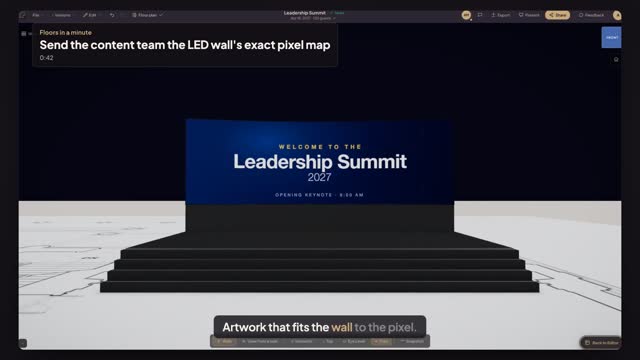
Click the LED wall in Floors.live and press Download content template. You get a PNG at the wall's exact composition, for example 3654 by 1154 pixels, with the panels marked. Send it to whoever designs the slides so they build on the real canvas instead of a guessed sixteen by nine.
Why does my content look stretched on the LED wall?
Because it was made at a different aspect ratio than the wall. Wide LED walls are rarely sixteen by nine. Under Screen Content, set Fit to Contain to see the whole design with bars, or Cover to fill the wall. The real fix is artwork built from the content template.
Can I preview the content team's artwork on the wall?
Yes. Choose Custom Image under Screen Content and upload their file. It appears on the wall in the plan and in Preview in 3D, mapped along the curve on a curved wall, so you and the client see the real slide on the real wall before load-in.
Transcript
Artwork that fits the wall to the pixel.
The content team asked for the LED wall's size. Give them the map.
Click the LED wall. Press Download content template.
A PNG at exactly 3654 by 1154 pixels: the wall's whole canvas, slice by slice.
Their artwork comes back. Under Content, pick Image and upload the file they sent.
Fit Contain shows the whole design; Cover fills the wall edge to edge.
Made at the wall's own resolution, so nothing stretches on show day.
Next: a delay screen for the back row.