
Questions this guide answers
How do I change the lighting in the 3D view?
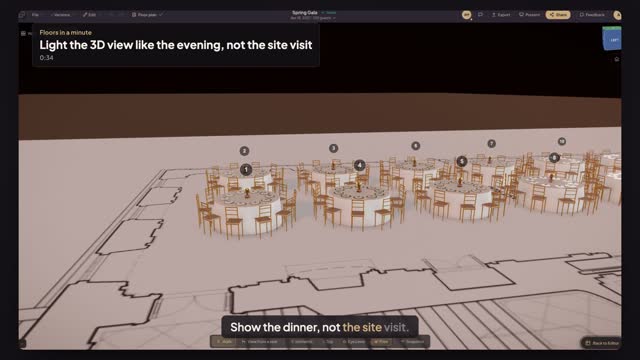
Open Preview in 3D and press Atmosphere. Pick a preset such as Candlelight, Cocktail or Golden Hour, then drag Warmth to make the light warmer or cooler. The change applies to the 3D view straight away and is saved with the plan.
Will my client see the same lighting?
Yes. The atmosphere you choose is stored with the layout, so the share link, the walkthrough link and Present open in the same light. Choose it before you send the link, so the first thing your client sees is the dinner, not a flat daylight model.
Can I make the room completely dark?
Not today. The presets change the colour and warmth of the light but keep the room bright enough to read every table, so a model never turns into a black screen on a client's laptop. For a moody render, Candlelight with Warmth pushed up is the closest look.
Transcript
Show the dinner, not the site visit.
The gala tables are dressed. The 3D light still looks like noon.
Open Preview in 3D, then press Atmosphere.
Pick Candlelight. The room takes the warm light of a dinner.
Drag Warmth to the right until it matches the venue's lighting.
It's saved with the plan, so your client's link opens in the same light.
The same tables, the way the guests will see them.
Next: match the client's linen colour exactly.