
Questions this guide answers
How do I add text to the plan?
Press T, or Add Text in the toolbar, click where it goes and type. Font, size, colour and a background are in Properties, and the text prints with the plan. Turn on Show in 3D if the label should also appear in the 3D view.
How do I draw an arrow?
Open Notes in the library and place an Arrow. Drag its handles to make it longer and press R to turn it, or use the rotation handle for any angle. For a route with turns, place two or three arrows end to end.
What should a load-in plan show?
The dock or door the truck uses, the path to the stage with its narrowest width, any lift or ramp, and where the cases are stored during the show. Label each one so a crew member who never saw the room can follow it.
Transcript
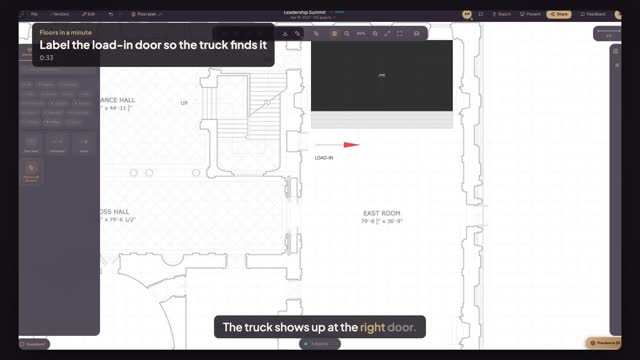
The truck shows up at the right door.
The stage is built. Now the crew needs the way in.
Press T, click inside the door nearest the stage, and type LOAD-IN.
Set Font Size to thirty-two, so it reads on a printed plan.
Open Notes, pick Arrow, and click by the door.
Set the width to ten feet and the depth to two. The arrow runs along the stage stairs.
Door, label and route: on every printed copy.
Next: the door swings the wrong way.