
Questions this guide answers
How do I lock an object so it cannot move?
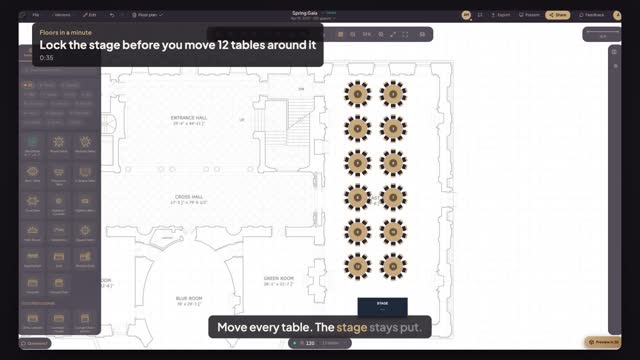
Click the object and press the padlock in Properties, under Layer. A locked object keeps its place, size and settings: dragging, Command A and a drag across the room all leave it where it is. Lock the stage, the dance floor and anything the venue has fixed before you start shifting tables.
How do I unlock it again?
Click the locked object. Properties shows a Locked notice with an Unlock button; press it and the object edits as before. Nothing else changes when you lock or unlock, so you can do it as often as the plan needs.
Does a locked object still show in 3D and on exports?
Yes. Locking only protects the object from edits in your plan. It still appears in the 3D view, in the PDF and in every link you share. To take something out of view for a moment, hide it with the eye next to the padlock instead.
Transcript
Move every table. The stage stays put.
The stage is where the venue wants it. The tables are not.
Click the stage and press the padlock in Properties.
Press Command A and drag a table. All twelve move, the stage does not.
Click the stage. Properties says Locked.
Press Unlock when the load-in plan changes.
Twelve tables moved, and the stage is exactly where it was.
Next: move the head table as one.