
Questions this guide answers
How do I hide an object?
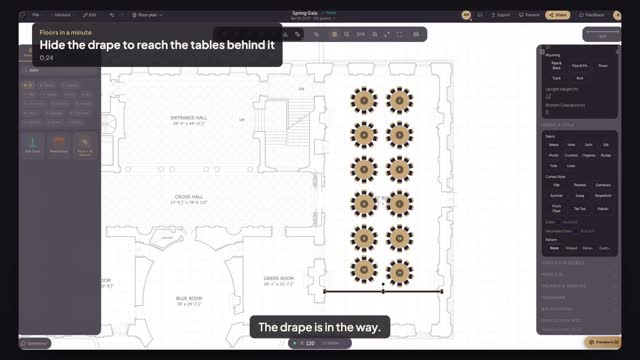
Select it and click the eye in the Layer section of Properties. It disappears from the plan until you bring it back, so you can reach whatever sits under it. Hiding works on any object, from a drape to a stage or a large rug that sits on top of tables you need to click.
How do I get a hidden object back?
A pill appears at the bottom of the plan saying how many objects are hidden. Press Show and every hidden object comes back and is selected, ready to move or edit. Nothing about the objects changes while they are hidden, so they come back exactly where they were.
Is hiding the same as deleting?
No. A hidden object keeps its size, position and settings; it is only out of sight while you edit. Remember to press Show before you export or share, so the drape is in the plan your client sees. A hidden object does not print.
Transcript
The drape is in the way. Hide it for a minute.
The dinner tables sit behind the divider you just placed.
Click the drape, then the eye in Properties to hide it.
Edit the tables behind it as usual.
Press Show on the hidden pill to bring the drape back.
Out of the way when you work, back when you present.
Next: label the load-in door for the truck.