
Questions this guide answers
How do I change the wall colour in 3D?
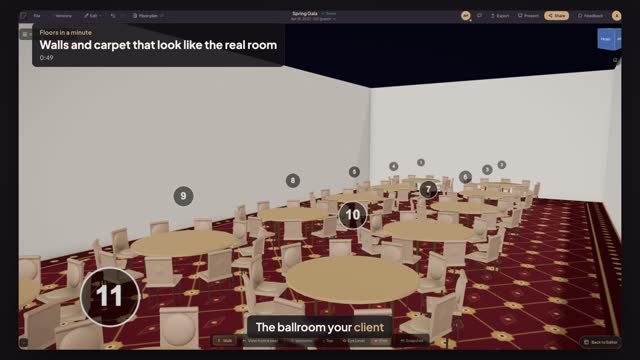
Open Preview in 3D and press Walls. Pick the swatch closest to the venue, such as Warm Cream, White Plaster or Charcoal, and set the opacity and height if you need to. The plan needs walls first: trace them with the Walls tool or draw a rectangle and choose Room walls.
Can I use the venue's real carpet?
Yes. Place a Carpet from the Decor group and drag it across the room. Under Carpet Style, upload a photo of the carpet as the Custom Graphic and set its opacity. Use a photo you are allowed to use, such as one the venue gave you or your own.
Do I need a 360 photo to make the room look real?
No. Wall colour, carpet, linens, chairs and lighting already make the model read as the real room. A 360 photo of the venue goes further, putting your layout inside the photographed space, and it needs a photo you have the rights to.
Transcript
The ballroom your client toured, not a grey box.
The East Room has cream walls and a patterned carpet. The model doesn't.
Open Preview in 3D and press Walls. Pick Warm Cream.
Back in the plan, open Decor, pick Carpet and click the room.
Drag its corners wall to wall, then press Send to Back.
Under Carpet Style, upload a photo of the venue's carpet as the Custom Graphic.
Open Preview in 3D again. Tables stand on the real pattern.
Same walls, same carpet. Your client recognises the room.
Next: light it like the evening.