
Questions this guide answers
How do I set up check-in for my event?
Seat your guests first. Then open Seating Mode in the editor, press Kiosk and Create Kiosk. Name it for its door, for example Front door. Each kiosk has two links: Operator, for the tablet your staff check guests in on, and Display, for a screen at the door that welcomes each guest with their table.
How many kiosks can one event have?
Up to ten per floor plan, one per entrance if you like. They all work off the same guest list and seating plan, so a guest checked in at one door shows as arrived at every kiosk, and the count at the top of each tablet goes up together.
Do the kiosk links need an account?
No. Anyone with a kiosk's link can use it, so open it on the tablet or screen at the venue, not in a public place. Delete the kiosk from the Kiosk panel when the event is over and its links stop working.
Transcript
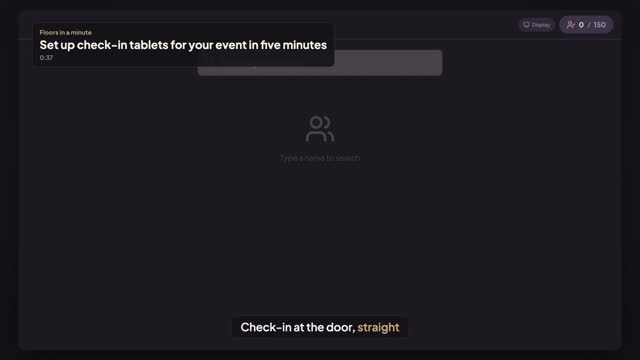
Check-in at the door, straight from your seating plan.
Alex's gala has a hundred and fifty guests, all seated.
Open Seating Mode, then press Kiosk.
Press Create Kiosk, and name it for its door: Front door.
You get two links: one for the check-in tablet, one for the screen at the door.
Open the tablet link. Your whole guest list is there, ready to check in.
One kiosk per entrance, up to ten, all working off the same list.
Next: a guest checks in and gets their seat.