
Questions this guide answers
How do I publish my venue page on Floors.live?
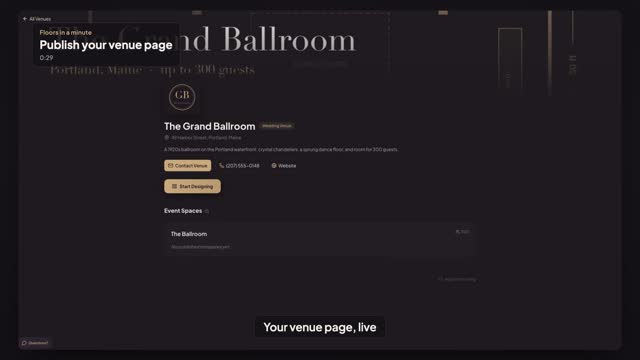
In your venue dashboard, open Profile. Upload your logo and a cover photo, write a short description of the venue, and add your phone number and website. Then switch on Publish in Venue Directory and press Save. Your public venue page goes live right away, and View page opens it the way planners see it.
Can planners see my venue page without a Floors.live account?
Yes. Once Publish in Venue Directory is switched on and saved, the venue page is public: anyone with the link can open it, signed in or not, on a phone or a laptop. Planners see your logo, cover photo, description and contact details, and can reach you or start planning their event from there.
Why isn't my venue page showing up for planners?
The page stays private until Publish in Venue Directory is switched on in Profile and saved. Check that the switch is on, press Save again, then use View page to confirm what planners see. A page that is not published shows nothing to visitors, even if the logo and description are filled in.
Transcript
Your venue page, live for planners in a minute.
Planners find you, see your spaces, and start designing.
Open Profile. Upload your logo and a cover photo.
Tell planners about the room, and how to reach you.
Switch on Publish, then press Save.
Your page is live. Any planner can open it, no account needed.
Next: publish official layouts for your space.